Practical Skills
21/3/2022


This week I have been making an inventory system in which I will then add collectables within my level to the inventory and continue to get the system working. The works behind the inventory system is shown below and it contains the system which makes the inventory pop up and turn off again. With the functions clearly labelled so if necessary I can go back and fix them easily and not spend ages looking for the error within the functions. I spent the majority of this week doing Unreal Engine work due to wanting to start off with something I find fun and understand. Other than starting work on this I chose to do further research on the scenario I had chose that being dungeons so I began to obtain further knowledge on how dungeons had looked within games and in real life
04/4/2022


This week I was modelling some modular assets for my game so I could have some building blocks when I brought it over to Unreal Engine. I worked on some corner pieces and basic corridors in order to begin as a basis for what I wished to achieve. I was adding plants to the corridors in order to give the area a bit more life. The Modelling for the walls was done in order to create miniature spots for lanterns to sit on so you could walk past with the illumination of the lantern to guide you with some lanterns unlit and which will have the option to light them once you interact with them which is something I will be working on in later weeks
18/4/2022


These are some of the currently created assets of my project as well as textured with all the materials listed below in which I implemented them and applied them to it all. Each of the stones varying in shape and size in order to create a differentiating environment. Also visible that I created more modular assets that being the T shaped box as well as just bring out the walls and floors as standalone pieces. I also created a lever in which you'll have to pull down in order to open all of the doors as well as the lantern which is highlighted and will be an asset you carry around and will produce light for you to see around the area other than the more rusted lanterns which will be giving of a faint light. This is the material textures with all the bitmaps. The first three physical material nodes going into the other node is for the lantern in order to fully get its textures right. The top physical material with the four bitmaps going into it is the colouring for the plants and foliage. With the other two being varying stone textures for both the rocks and the hallways.
25/4/2022


I started importing my assets into Unreal Engine 4 from 3DS Max with all the textures applied and walls constructed, Within each of the folders contains each asset to be used and form the full level with the textures for each segment kept within it all.

2/5/2022

I began to start work on building the map in game with the rooms inside the dungeon. I wanted the idea that a captive held in the dungeon busted out through the metal bars with my spawn area I wanted it to spiral off into many direction with one of the directions only being able to be accessed once the keys were collected then the final door will open and allow you to finish the game. The

16/5/2022


Throughout the week. I started putting in finishing touches to my project. The things I did this week are; The Control and Pause menu. Within the Pause Menu it has five buttons, being Resume, Controls, Quit. The other two are after you click quit being, Return To Main Menu and Quit to Desktop. These remain hidden until the quit button is clicked which will then reveal these choices. I did this by setting up the quit button with a flip flop behind the button which when clicked will flip it into visibility. With the Control menu, this becomes accessible once clicking the control button on which it'll display the main controls of the game.
I also created a Main menu this week, with the very simplistic choices of the Play button and the Quit button. I made it like this in order just to immediately get you to the game rather than having to look at menu after menu at the very beginning. As well as this I also did the completion screen, within which it allows you to either play the game again or just exit the game.


At a later date this week, I continued to make progress on my final project. Finishing one of the main concepts within my game. This being a collectable system. I set up a collectable system in order for people to explore the area I created and make sure they checked all areas before they were able to complete the game. I decided to make the collectable object a chest. With six chests in total, I then set up a blueprint that in order for the wall door to lower you had to collect all six chests. You were able to tell all six were collected by a green spotlight that would appear aiming at the wall door indicating for you to interact with it in order to finish the game. The wall door would make a noise if you interacted with it once all six chests were collected before the end screen came up. I created the blueprint for this by getting the value for how many collectables were left and if it equalled zero, the light would turn on and you would be allowed to leave


During the same work period as the prior update, I finally finished the design for each of the rooms. Within each room contains at least one of the collectables with the top image of the rooms containing four of the six.
I decided to put the key for all the doors underneath some wood debris which unlocks the door in order to get the other two chests remaining. If you try to open the doors without the key you are greeted by a locked wooden door slamming noise which to signify that you need a key and you can find it somewhere in the map. Once the key is picked up you'll hear a little jingle key noise to know that you're now in possession of the key, which grants you access to one of the rooms and both chests.
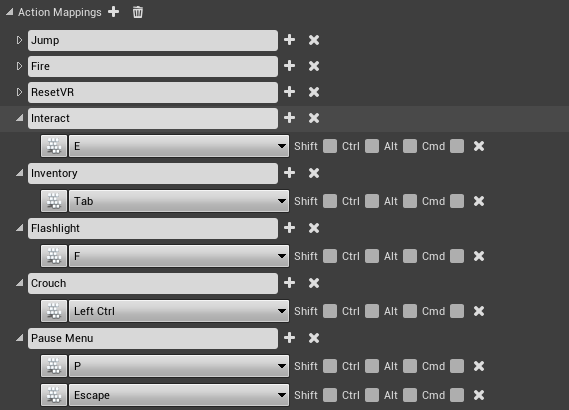


This here was completed in the latter stages of the production. The Asset list is the final display of what assets were used in the creation of the rooms and levels. Within each folder is the corresponding asset and its texture just to keep things perfectly organised and easily located. I also have shown my action mappings just to display what my all the key binds were when referencing the interact action.
Also nearing the end of production I added footstep noises which would play a random footstep noise out of the four noises provided to make it sound like real footsteps and not just the same tapping constantly. I did this by putting the .wav files into a singular sound cue and getting a random node and inputting each of them into it and then putting that into a modulator before outputting the audio after a certain delay between each step. I put a delay in order to make it not a constant tapping but the tapping of a sort of rhythmic walk in order for it to be more pleasing to the ears.
I also made the lantern light togglable now. Before it was permanently on, so I changed it to give the option of whether the player wanted it on or off. The main factor for doing this was mainly to just provide the player with more choice in what they did within the game. I also added a crouch toggle which gave me an extra option to place a chest underneath debris in order to force the player to learn the crouch control in order to finish the game fully. As well as just being able to crouch around the map.